Transcribe videos on any website, not only YouTube
To turn a video into text, open the page where it plays and open the Video Transcriber panel next to the player. It shows the site’s captions at once, or writes an AI transcript from the audio when there are none. There is nothing to upload and no link to paste.
Add to Chrome — it’s free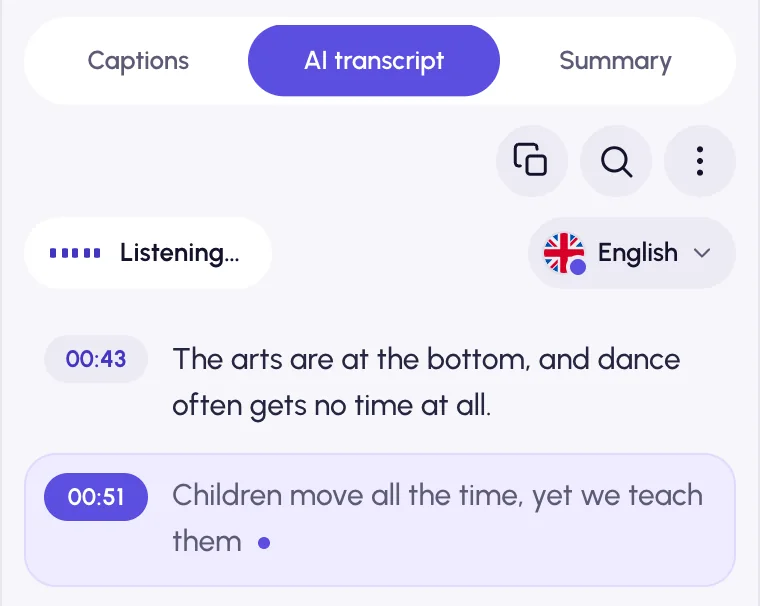
How to turn a video into text
Open the page with the video
A video platform, an online course, a webinar recording or a news article: any page with a standard video player.
Open the panel
Click the Video Transcriber tab at the edge of the page, or press Alt+Shift+V. The site’s captions show up on the Captions tab.
Transcribe and save
No captions? Open AI transcript and press Transcribe audio. Then copy the text or save it as TXT, SRT or VTT.
Why transcribe on the page itself
Not only YouTube
Video platforms such as Vimeo, course pages, webinars, news sites and live streams. Players with DRM, such as paid movie streaming, block the audio; when a video’s audio can’t be read, the panel says why.
Nothing to upload
The extension reads the speech in your browser and never saves the video. Only compressed speech audio, with the title as a hint, goes through our server to the AI; our server doesn’t store it.
Long videos too
A whole video is transcribed at once, without playing it: videos up to 4 hours long, up to 2 hours a day per account. Past the daily limit, you continue the next day.
Text you can use
Search it, jump to any line, remove filler words, summarize, translate, copy it or save it as TXT, SRT or VTT.
At a glance
- Works on
- Any site that plays video in a standard HTML5 player
- Captions
- As text at once, when the site has them
- AI transcript
- A whole video, usually in a few minutes; videos up to 4 hours, up to 2 hours a day per account
- Video upload
- None: only compressed speech audio is sent (on YouTube, just the link), and our server doesn’t store it
- Runs in
- Google Chrome on desktop: Windows, macOS, Linux, ChromeOS
- Price
- Free, no sign-up. AI within fair daily limits per account: 2 hours of AI transcription and 20 summaries or questions, plus limits on translation and filler-word removal
Captions or AI transcript?
| Captions or AI transcript? | Captions | AI transcript |
|---|---|---|
| The text comes from | The site’s own captions | The video’s audio |
| Speed | At once | Usually a few minutes for a whole video |
| Without captions | Not available | Works |
| Free use | No limits | 2 hours of AI transcription a day per account |
Video transcription questions
Which websites does it work on?
Any website that plays video in a standard HTML5 player: video platforms, online courses, webinar recordings, news sites, and live streams on Twitch or Kick. Players with DRM, such as paid movie streaming, block the audio, so an AI transcript can’t be made there.
Do I need to upload the video or paste a link?
No. You use the panel on the page where the video plays. For an AI transcript, the extension sends only compressed speech audio, with the video title as a hint, through our server to the AI (for YouTube, just the public link), and our server doesn’t store it (Privacy Policy).
How long does it take?
Captions appear at once. An AI transcript of a whole video is usually ready in a few minutes, and you can keep watching meanwhile. Live streams are transcribed as they play.
How accurate is the AI transcript?
It depends on the audio: clear speech gives the best text. Google Gemini writes the text with punctuation; outside YouTube, Whisper on DeepInfra refines the timestamps for most languages and fills in speech Gemini missed. Names and jargon can still come out wrong, so check what matters.
Can I transcribe a video from my computer?
Yes, on the My files page: video and audio files such as MP4, MOV, MP3 or WAV. See video and audio files.
More ways to use Video Transcriber
- YouTube transcriptsGet the transcript of any YouTube video next to the player, with or without captions.
- Video & audio filesTranscribe MP4, MOV, MP3, WAV and other files from your computer, without uploading them.
- Lectures & coursesTurn recorded lectures, course lessons and webinars into text, notes and chapters.
Your next video, as text.
Free, and installs in seconds.
- 1Open Video Transcriber in the Chrome Web Store
- 2Click Add to Chrome, then Add extension
- 3Pin it from the puzzle icon next to the address bar