Turn lectures and online courses into text and notes
To transcribe a lecture, open the lesson page in Chrome with Video Transcriber: the panel shows the lesson’s captions at once, or writes an AI transcript from the audio. Then turn it into detailed notes or chapters with timestamps, or ask it questions.
Add to Chrome — it’s free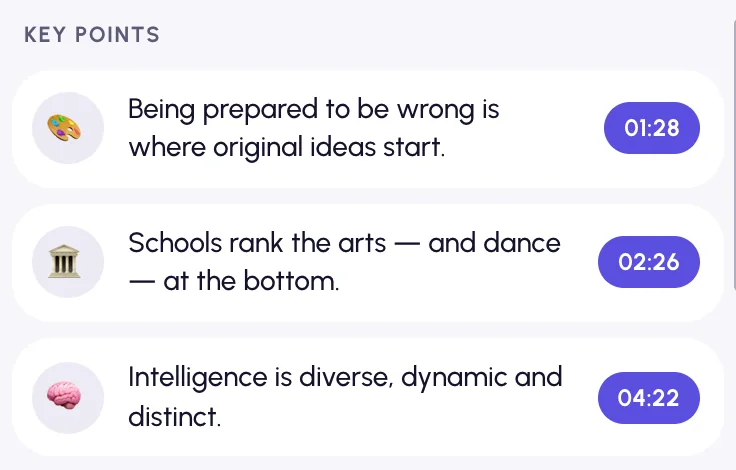
How to transcribe a lecture
Open the lesson
On your course or webinar page, where the video plays. There is nothing to download.
Get the text
Captions appear at once if the lesson has them. If not, open AI transcript and press Transcribe audio.
Make notes
In Summary, choose Detailed for notes section by section or Chapters for a table of contents, then copy it into your notes app.
Study with the text
Read at your own pace
Skim the parts you know, search for a definition or an example, and click a time to rewatch just that moment.
Notes in minutes
Detailed summaries go section by section with quotes; Chapters list the lecture’s topics with times.
Ask the lecture
Missed a point? Ask. Answers come from the transcript, with links to the moments that cover it.
Learn in two languages
Translate a lesson and read both languages side by side, or read the original along while you listen.
At a glance
- Works on
- Course and webinar pages with a standard HTML5 player
- Long lessons
- A whole lesson at once: lessons up to 4 hours, up to 2 hours a day per account
- Notes
- Detailed summary with quotes, Chapters, Ask the video
- Recordings
- Lecture files from your computer, in My files
- Runs in
- Google Chrome on desktop: Windows, macOS, Linux, ChromeOS
- Price
- Free, no sign-up. AI within fair daily limits per account: 2 hours of AI transcription and 20 summaries or questions, plus limits on translation and filler-word removal
What you get for each lesson
| The lesson | What you get |
|---|---|
| Has captions | The captions as text, at once |
| No captions | An AI transcript, usually in a few minutes |
| A live class or webinar | The text as it is spoken |
| A recording on your computer | An AI transcript in My files |
| A player with DRM | No AI transcript: the player locks the audio |
Lecture transcription questions
Does it work on my course platform?
If the lesson plays in a standard HTML5 player, yes: the panel appears next to it. Some course players use DRM, which blocks the audio, so an AI transcript can’t be made there.
Can it handle a long lecture?
Yes. A whole recording is usually transcribed in a few minutes, without playing it: lectures up to 4 hours long, up to 2 hours of video per account a day.
Can I transcribe a live class or webinar?
Yes. On a live stream the panel switches to live mode and writes the text as it plays. See live stream transcription.
Where are my notes kept?
Transcripts and summaries are saved only in your browser, and lessons where you used an AI feature are listed in My files. Our server doesn’t store them (Privacy Policy).
More ways to use Video Transcriber
Your next video, as text.
Free, and installs in seconds.
- 1Open Video Transcriber in the Chrome Web Store
- 2Click Add to Chrome, then Add extension
- 3Pin it from the puzzle icon next to the address bar