Summarize any video with AI
To summarize a video, open it in Chrome with Video Transcriber and choose Summary in the panel next to the player. Pick Short, Detailed or Chapters: Google Gemini writes the summary from the video’s captions or AI transcript, with timestamps that jump to the right moment.
Add to Chrome — it’s free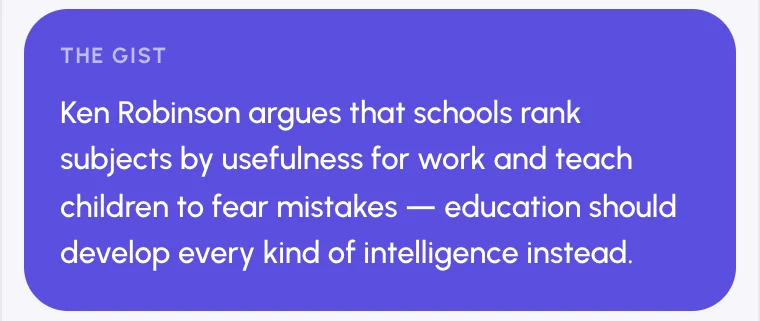
How to summarize a video
Open the video
On YouTube or any other site with a video player. The summary needs the video’s text: its captions, or an AI transcript when there are none.
Choose Summary
Pick the type: Short, Detailed or Chapters. The summary is written in your Video Transcriber language.
Ask and copy
Ask the video your own questions under the summary, click a time to jump, or press Copy summary.
The video at a glance
Three kinds of summary
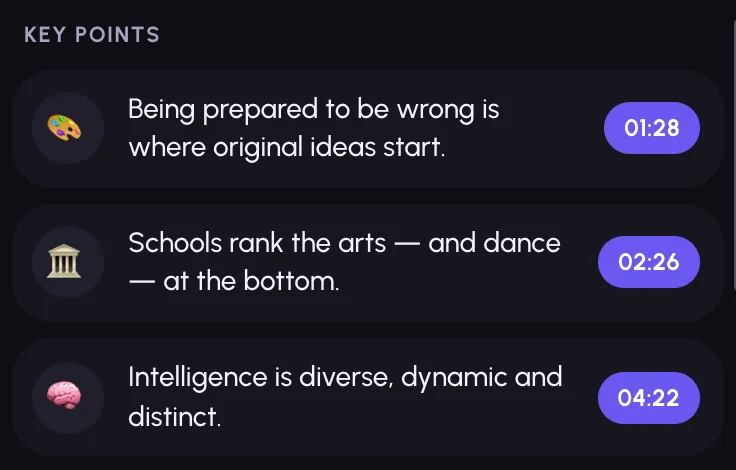
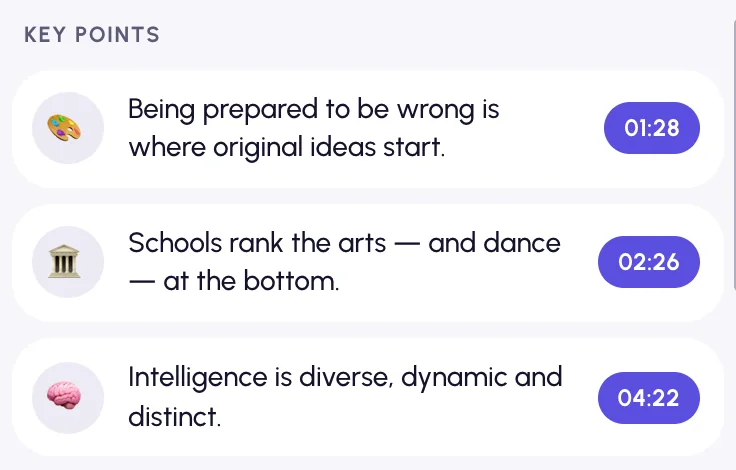
The gist with the main points, section-by-section notes with quotes, or the video’s table of contents with clickable times.
Ask the video
Answers come from the transcript, with links to the right moments. If the video doesn’t cover your question, the answer says so.
Not only YouTube
Summarize videos on any site, files from your computer and live streams, as long as there is a transcript.
In your language
The summary is written in your Video Transcriber language, whatever language the video speaks: it follows Chrome’s language, or the one you choose in the extension.
At a glance
- Summary types
- Short, Detailed, Chapters
- Language
- Your Video Transcriber language, whatever language the video speaks
- Ask the video
- Answers from the transcript, with timestamps
- Live streams
- Up to the newest 30 minutes
- Runs in
- Google Chrome on desktop: Windows, macOS, Linux, ChromeOS
- Price
- Free, no sign-up. AI within fair daily limits per account: 2 hours of AI transcription and 20 summaries or questions, plus limits on translation and filler-word removal
Which summary to pick
| Type | What you get | Good for |
|---|---|---|
| Short | A couple of sentences and the main points | Deciding whether to watch |
| Detailed | Section-by-section notes with quotes | Study notes and reading |
| Chapters | The video’s topics with times: click one to jump | Long videos, finding a part |
Video summary questions
Can it summarize a video without captions?
Yes. Start the AI transcript first; as soon as there is text, Summary works the same way. A summary of a partly transcribed video says which part it covers.
Can I ask questions about the video?
Yes. Type a question under the summary. The answer comes from the transcript, with timestamps you can click, and says so when the video doesn’t answer it.
Which language is the summary in?
Your Video Transcriber language, whatever language the video is in. It follows Chrome’s language (the interface comes in 52 languages), or the language you choose in the extension’s settings.
Is it free?
Yes, within a fair daily limit of 20 summaries or questions per account. No sign-up is needed.
Where are my summaries kept?
Only in your browser. To write one, the transcript text and the video title go through our server to Google Gemini; our server doesn’t store them (Privacy Policy).
More ways to use Video Transcriber
Your next video, as text.
Free, and installs in seconds.
- 1Open Video Transcriber in the Chrome Web Store
- 2Click Add to Chrome, then Add extension
- 3Pin it from the puzzle icon next to the address bar